

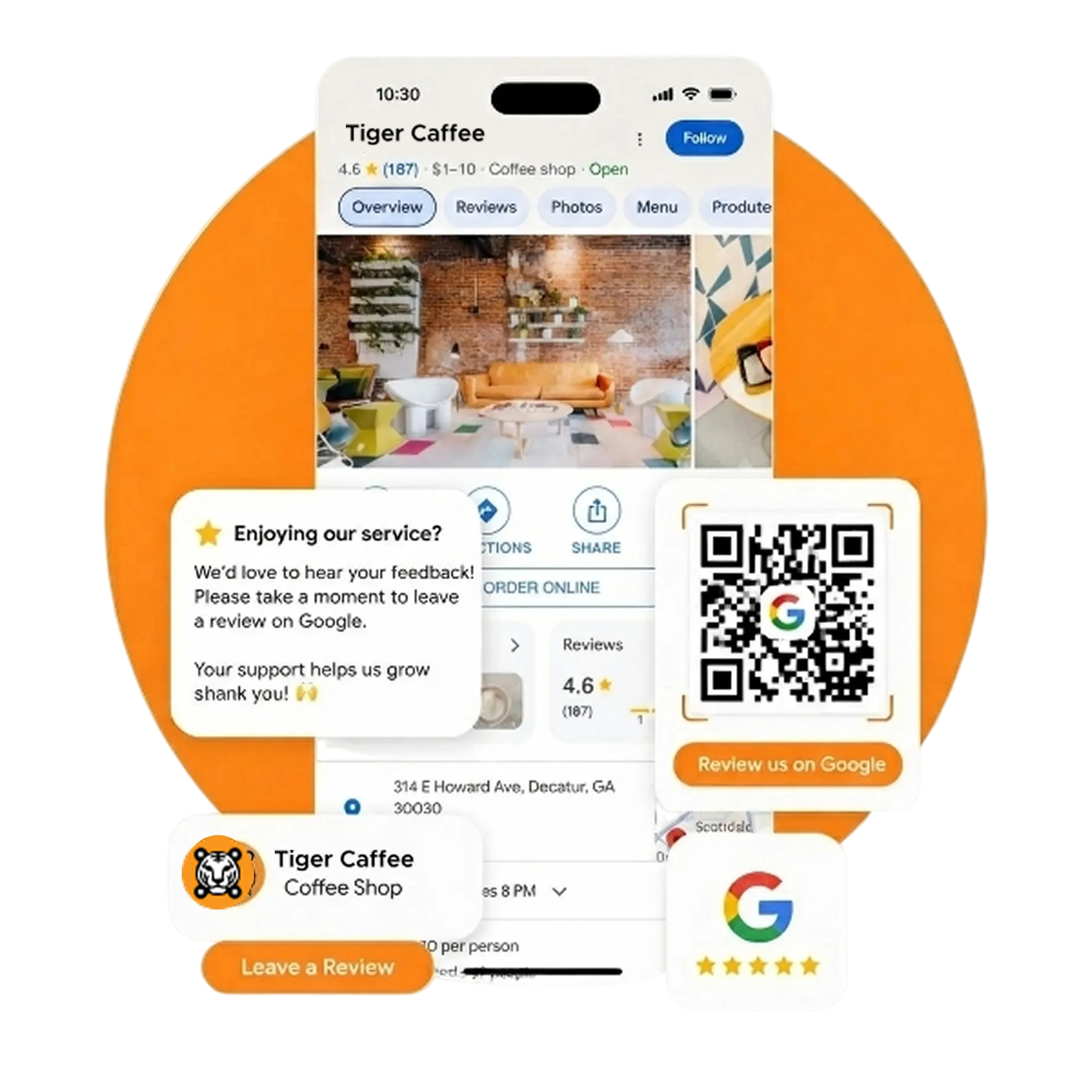
What is a Google Reviews QR code and how does it work?
It’s a scannable code that instantly opens your Google Business profile review page in one scan. It bypasses manual search steps, taking customers straight to your rating and review form so they can leave valuable feedback hassle-free.
How to create a Google Reviews QR code
Here’s how to get a QR code for Google Reviews the easiest way:

Find your Google Review Link
Go to your Google Business Profile and copy your specific review link.

Select the URL QR Code
On QR TIGER, choose the URL solution from the menu.

Paste the Link
Paste your Google Review link into the empty field.

Choose Dynamic QR
Select Dynamic QR so you can edit the link later and track scans.

Customize your Design
Add your logo, change colors, and add a frame with a clear call to action.

Test and Download
Scan the code to ensure it works, then download it in high quality.
What makes QR TIGER the right tool for Google review QR codes?
Thousands of businesses use our platform to turn review links into branded QR codes that are easy to manage. Here’s why

Dynamic link editing
Use a dynamic QR code to update your review link anytime, even after printing. Changes made in your dashboard instantly apply to every QR code you’ve already printed.
Scan tracking & analytics
Track activity by scan counts, time, location, and device. See which placements generate the most engagement and reviews.
Faster scan insights
Ask direct questions about your QR code performance through the AI chatbot and get quick answers based on your scan data.
Instant email notifications
Receive scan alerts by email so you immediately know when someone scans your code and leaves feedback.
Custom QR code design
Add your logo, pick your brand colors, and style the QR pattern to match your visuals. Branded, professional QR codes attract more scans than generic black-and-white codes.
Why should businesses use a QR code for Google Reviews?
A QR code for Google Reviews makes it easy for customers to leave feedback. Instead of searching for your business, they can scan the code and go straight to your review page. Fewer steps mean more reviews and better visibility online.
Removes review barriers
Customers don't need to search for your business or type anything. They scan, land on your review page, and can leave feedback in under a minute.
Captures real feedback
Ask for reviews while the experience is still fresh. Customers are more likely to leave feedback immediately after a positive interaction.
Builds trust and social proof
A steady stream of genuine reviews builds customer trust and signals Google that your business is active, helping attract more customers and improve visibility.
Supports local visibility
Google reviews help businesses stand out in local search results. Making reviews easier to leave supports your review strategy and your local presence.
Tracks which placements work best
Using dynamic QR codes with tracking lets you see when, where, and on what device customers scan. This helps you identify which touchpoints drive more review activity.
Keeps the link editable
You can update the review link behind the QR code without changing the printed code. This helps you save time and avoid extra print costs.
Frequently asked questions
What is a QR code for Google Reviews?
A QR code for Google Reviews opens your Google review page, so customers reach your review form faster and leave feedback with fewer steps.
Is a QR code for Google Reviews free?
Yes. Static Google Reviews QR codes are free to create and never expire. On the free plan, you can create up to three dynamic QR codes, but scan tracking and editing features are limited. To unlock unlimited dynamic codes and full tracking, you'll need a paid plan.
Do review QR codes expire?
No, they don't expire if they're a static QR code. However, it's different for dynamic QR codes, which stay active for the duration of your subscription, and expiry controls are available on supported plans.
Where should I display my Google Reviews QR code?
Place it where customers finish their visit or transaction, such as on receipts, counters, tables, packaging, thank-you cards, follow-up emails, chat end screens, or in-store signs.
Can I use a Google Reviews QR code on my website?
Yes. You can use and place a Google Reviews QR code on your website as a scannable image. When scanned directly from your website, it directs users straight to your Google review page. You can also use it on contact pages, footers, or post-purchase confirmation pages to encourage feedback at the right time.
Do customers need a Google account to leave a review?
Yes. Customers must be signed in to a Google Account to leave a Google review.
Do I need a Google Business Profile to create a QR code for Google Reviews?
Yes. Your Google review link comes from your Google Business Profile, so you need to set up your profile before you can use it.
What happens if my Google Business Profile URL changes?
If your Google Business Profile URL changes and you are using a static QR code, the code will no longer lead to the correct page. You would need to generate and reprint a new code with the new URL. If you use a dynamic QR code, you can update the destination link without changing the code itself, so printed or embedded codes continue to work and lead to the correct updated page.
Can I add my logo to a Google Reviews QR code?
Yes, you can place your own logo in the center of your Google Review QR without affecting its scan reliability as long as the logo doesn't disrupt the pattern, there is enough contrast, and a clear quiet zone is maintained around the code.
Can I create review QR codes for multiple locations?
Yes. If your business has multiple branches, you can generate separate QR codes for each Google review link so each location gets its own traffic.
How do I track the performance of my Google review QR code?
Log in to your QR TIGER account, go to Dashboard, select your QR code, and click Stats to view its scan performance. You can also use QR TIGER's AI Data Chat to get quick insights from your QR code data.
Download the QR TIGER App



'QR Code' is a trademark of DENSO WAVE INCORPORATED. © 2026 www.qrcode-tiger.com